# Store art: screenshots and previews
Screenshots and previews are one step of the journey, but the one that takes the longest by hand, so storebound
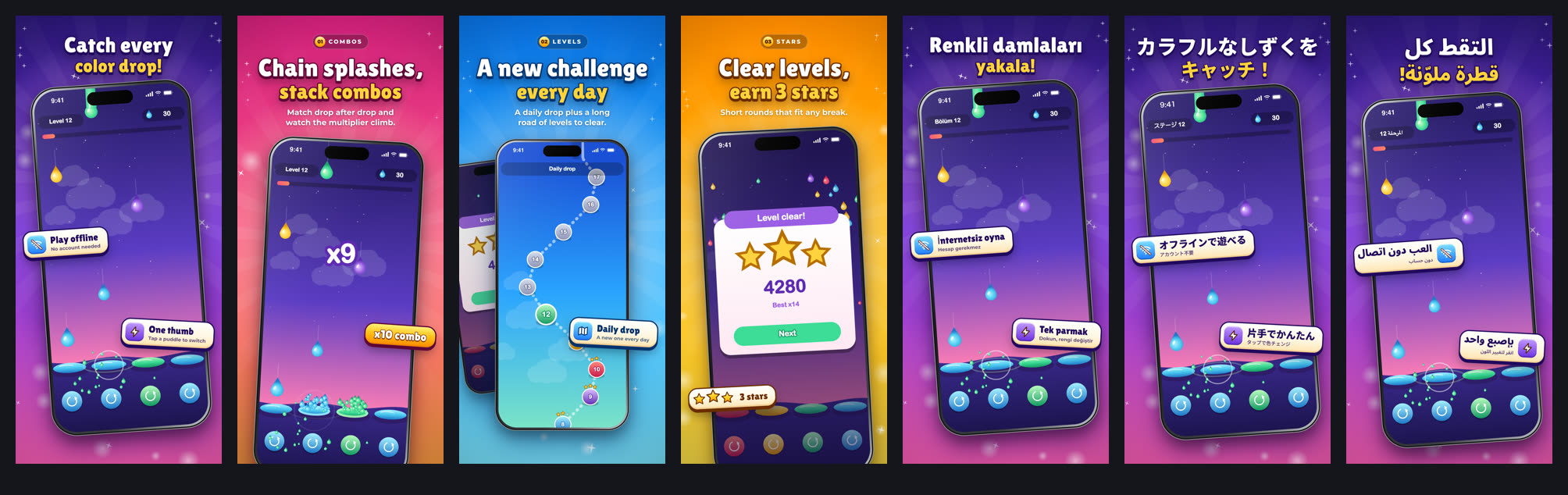
does a lot here. Two looks: `shots.style: 'game'` (sunburst, sparkles, badges) and `shots.style: 'app'` (calm
gradient, a clean device frame, headline + subline). Everything below was made by storebound itself from two tiny
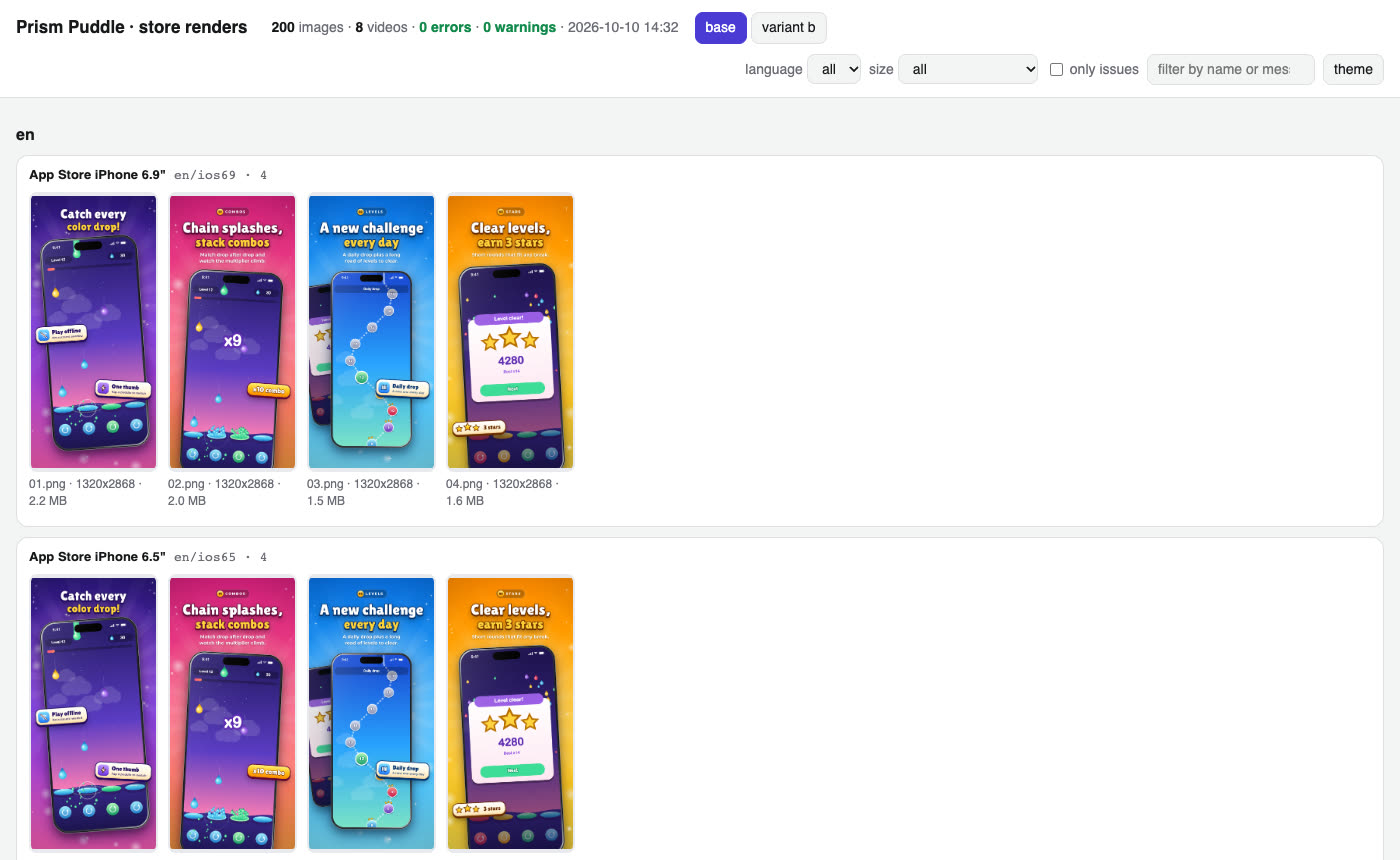
fictional demos: [a game](../examples/demo-game) ("Prism Puddle", procedural art) and [an app](../examples/demo-app)
("Tidy Lists", one static page with sample data): raw frames captured from the web build, captions in several
languages, every store size, a review gallery and an app preview video. No store account needed to try it.
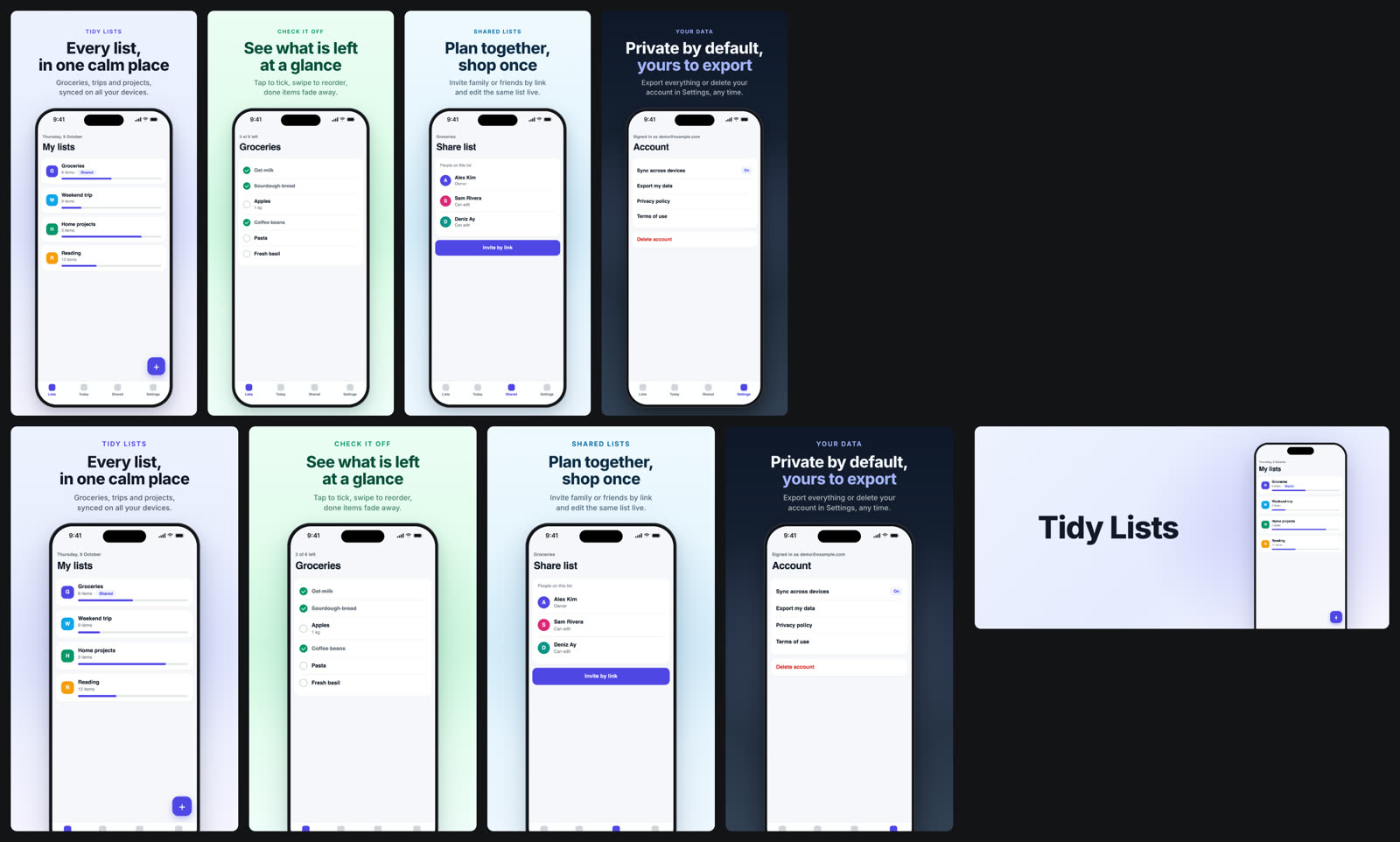
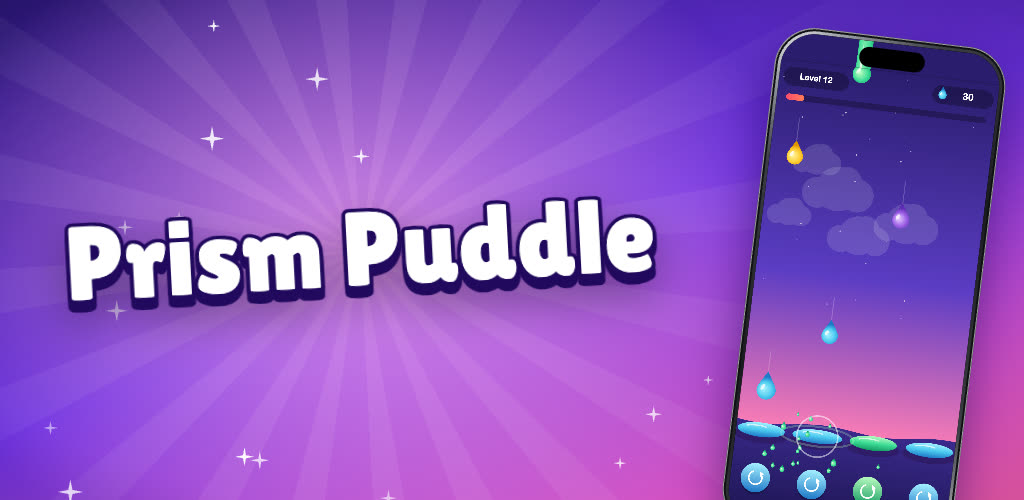
| Play feature graphic | App preview (App Store, 886 x 1920) |
|---|---|
|  | 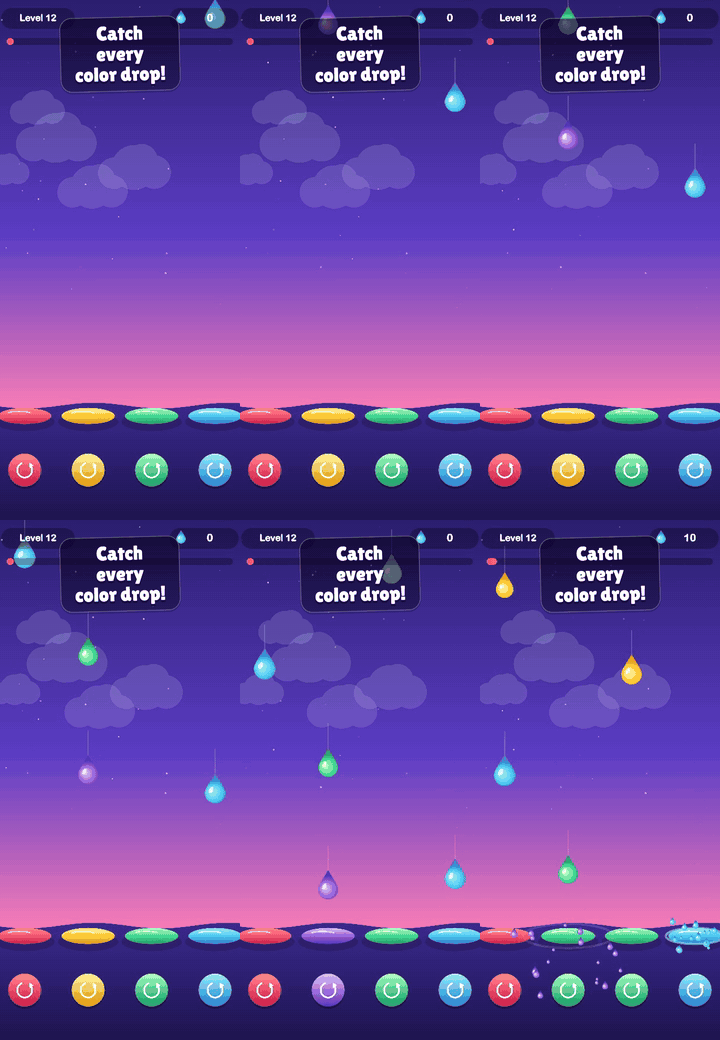 |
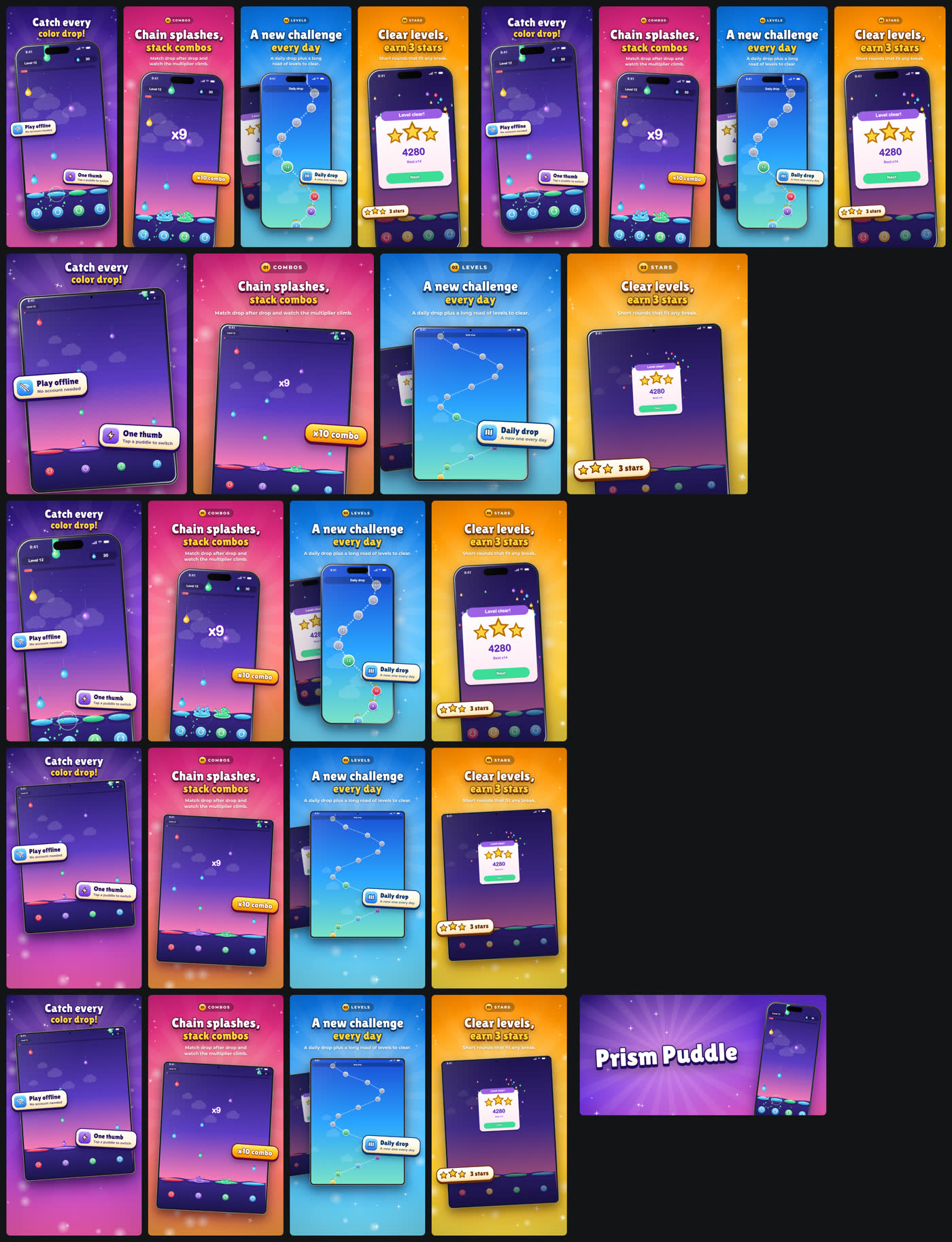
Contact sheet of one language (every size, packed into a grid)
## How it works
1. **Frames.** Give your app or game a few switches (language, demo data or a fixed seed, no ads, jump to a screen,
freeze, autoplay) and
let `shots capture` take the frames: Playwright for a web build, `simctl` for anything that runs in the iOS
Simulator (Unity, Godot, Flutter, React Native, native, Capacitor), `adb` for an Android emulator or device, or bring a folder of
your own frames. The status bar is cropped off and redrawn clean (9:41, full battery).
2. **Copy.** Per language and scene: eyebrow, two-line title, subtitle, badges. Fonts are subset from Google Fonts to
exactly your characters, so Japanese, Chinese, Korean, Arabic (right to left) and Hindi just work. `shots fonts`
checks every character of every language against the font's cmap (TTF / OTF / WOFF / WOFF2, read in plain
TypeScript): a glyph the font lacks gets an automatic Noto fallback (logged), no fallback is a clear error, and a
render that drew any glyph with a fallback you did not choose, or with a system font, fails `shots check`.
| script | title / body font (default stack) |
|---|---|
| Latin incl. Latin Extended (tr, pl, cs, ro, hu ...) and Vietnamese | your `shots.fonts`; default game Paytone One + Montserrat, app Inter (all cover them) |
| Cyrillic, Greek | Noto Sans (whole line) |
| Arabic, Hebrew, Devanagari, Bengali, Thai | Noto Sans Arabic / Hebrew / Devanagari / Bengali / Thai (whole line) |
| Japanese, Korean, Chinese | Noto Sans JP / KR / SC (TC for zh-Hant, TW, HK) (whole line) |
| a character the stack lacks | Noto Sans Display (titles) or Noto Sans (body), Noto Sans <Script>, then Noto Sans Symbols 2 / Symbols / Math: an ERROR in `shots check` unless listed in `shots.fonts.fallback` |
Some display fonts lack Latin Extended: Lilita One has no ş ğ İ ą ę ń ś ź ż ć ă ș ț č ř ě ů ő ű or Vietnamese,
so Turkish, Polish, Czech, Romanian, Hungarian or Vietnamese titles need another title font (Paytone One, Baloo 2,
Rowdies) or `fonts: { ..., fallback: ['Noto Sans Display'] }` to accept the mixed glyphs.
**Your own brand font.** `shots.fonts.title` / `body` / `fallback[]` also take a local file (relative to the
config; TTF, OTF, WOFF or WOFF2, checked by extension and signature) or `{ family, file, weight?, style?, license? }`:
```ts
fonts: {
title: { family: 'ER Display', file: 'apps/game/public/assets/fonts/er-display.woff2', license: 'OFL-1.1' },
body: 'Montserrat',
fallback: ['Noto Sans Display'], // tried in order, before the automatic Noto fallbacks
},
```
`shots fonts` runs the same cmap check on the file (`pl title: ę ł ą Ł not in ER Display -> Noto Sans Display`),
prints its size, glyph count, sha256 and license, and records it in `fonts.json`. The file is never copied: render
(and `shots video` captions) serve it from where it is, and a changed file changes `fonts.css` (the capture cache
misses) and makes `shots render` ask for `shots fonts` again. `shots check` counts the local font and listed
fallbacks as configured, not as fallbacks, and warns when a local font has no `license` note.
3. **Render.** Every store size at exact pixels: iPhone 6.9" and 6.5", 13" iPad (if your app runs on iPad), Play
phone, 7" and 10" tablets, the 1024 x 500 feature graphic. 24-bit RGB, no alpha (both stores reject it).
4. **Check and review.** `shots check` applies the store rules locally (sources cited in `cli/shots/spec.ts`);
`shots gallery` puts everything on one page with problems outlined. `validate` repeats the checks next to the
store state.
5. **Variants.** Other first screenshot, order or copy as `shots.variants`, rendered side by side, for a Play store
listing experiment or an App Store Product Page Optimization test (set up in the consoles; storebound makes and
checks the images).
6. **Video.** `shots record` films the autoplay mode, `shots video` cuts 15-30 s App Store previews (886 x 1920,
1200 x 1600) and a 9:16 / 16:9 promo for YouTube with captions in every language, `apple previews` uploads them.
Play takes a YouTube URL in `play.video`.
7. **iPhone Duo (foldable).** `apple.iphoneDuo: true` renders and checks the outer (1398 x 2034) and inner
(2007 x 2853) sets. Optional now, reportedly required from April 2027 for iOS 27.1 SDK builds (`check` / `validate`
note it). The API has no Duo display type yet, so `apple screenshots` skips them with a link to the console's
iPhone Duo tab. Play has no foldable slot: foldables use the 7" / 10" tablet sets.
Details: the [store-screenshots](../skills/store-screenshots/SKILL.md) and [app-previews](../skills/app-previews/SKILL.md)
skills.
---
[All docs](README.md) · [README](../README.md)
## Header and Search Results (App Store creative assets, iOS / iPadOS 27+)
Since 5 Oct 2026 the App Store version page has a "Header and Search Results" tab next to "App Previews and
Screenshots". Optional: without these assets the App Store uses in-app events, app previews and screenshots.
- **Files** under the renders folder, per language: `//creative/header.png` (3840 x 1646, 21:9),
`search.png` (3:2, 1920 x 1280 up to 3840 x 2560), or one `universal.png` (5244 x 2950, 16:9) that fills either slot
(also `/creative/universal.png` for every locale, or `apple.creativeAssets.universal`). JPEG / PNG without
alpha. Videos instead: `header.mov|m4v|mp4` / `search.*`, 5-30 s, 30 or 60 fps, the same aspect ratio; search videos
play muted. `apple.creativeAssets.header: false` / `search: false` skips a slot.
- **Not rendered by `shots render`**: the scene templates are portrait device shots; make the wide art yourself (or from
the feature graphic artwork at the larger size) and drop it in.
- **Upload and select:** `storebound apple creative-assets --dry`, then without `--dry`. Files go into the app's Asset
Library (API: `appAssetLibraryImages` / `appAssetLibraryVideos`, category `CREATIVE_ASSETS`), and once processed
("Prepare for Submission", a bounded wait of 2 minutes with a heartbeat) the run selects them for the slots of the
editable version (`appAssetLibraryPlacements`, `PRODUCT_PAGE_HEADER_ASSET` / `APP_STORE_SEARCH_RESULTS_ASSET`), as the
console's Browse Assets > Save does. Approval is not needed first. Same file (MD5) = nothing sent; an archived copy is
unarchived; a file App Review rejected is never uploaded again (change the file). MCP: `apple_creative_assets` (dry by
default).
- **Review:** an asset is reviewed only once it is in a review submission (its own item, `appAssetLibraryImage` /
`appAssetLibraryVideo`; the console's "Add for Review"). `--add-for-review` adds the selected, unreviewed assets to the
app's draft submission, once: before the first approved version it is the same submission as that version, later
they can go alone. Pressing Submit for Review stays the owner's.
- **Live app, no editable version:** the run uses the live version, where only APPROVED assets are selected (Apple
swaps approved assets onto a live version without a new build). New files are uploaded and wait for review:
`--add-for-review` sends them as a submission of their own (the app has an approved version), the owner presses
Submit for Review, and a re-run after approval selects them.
- **Verify:** `storebound apple creative-assets --verify` (MCP `apple_creative_assets_verify`) is read-only: every slot
of the editable version (else the live one) shows the local file, with its review state; exit 1 when one differs.
- **Checks:** `storebound check` and `validate` print an info note when no locale has one.
- **Play:** no such slot. The feature graphic (1024 x 500, `play images`) and the promo video (YouTube URL) are the
closest equivalents.