
9.1 KiB
Store art: screenshots and previews
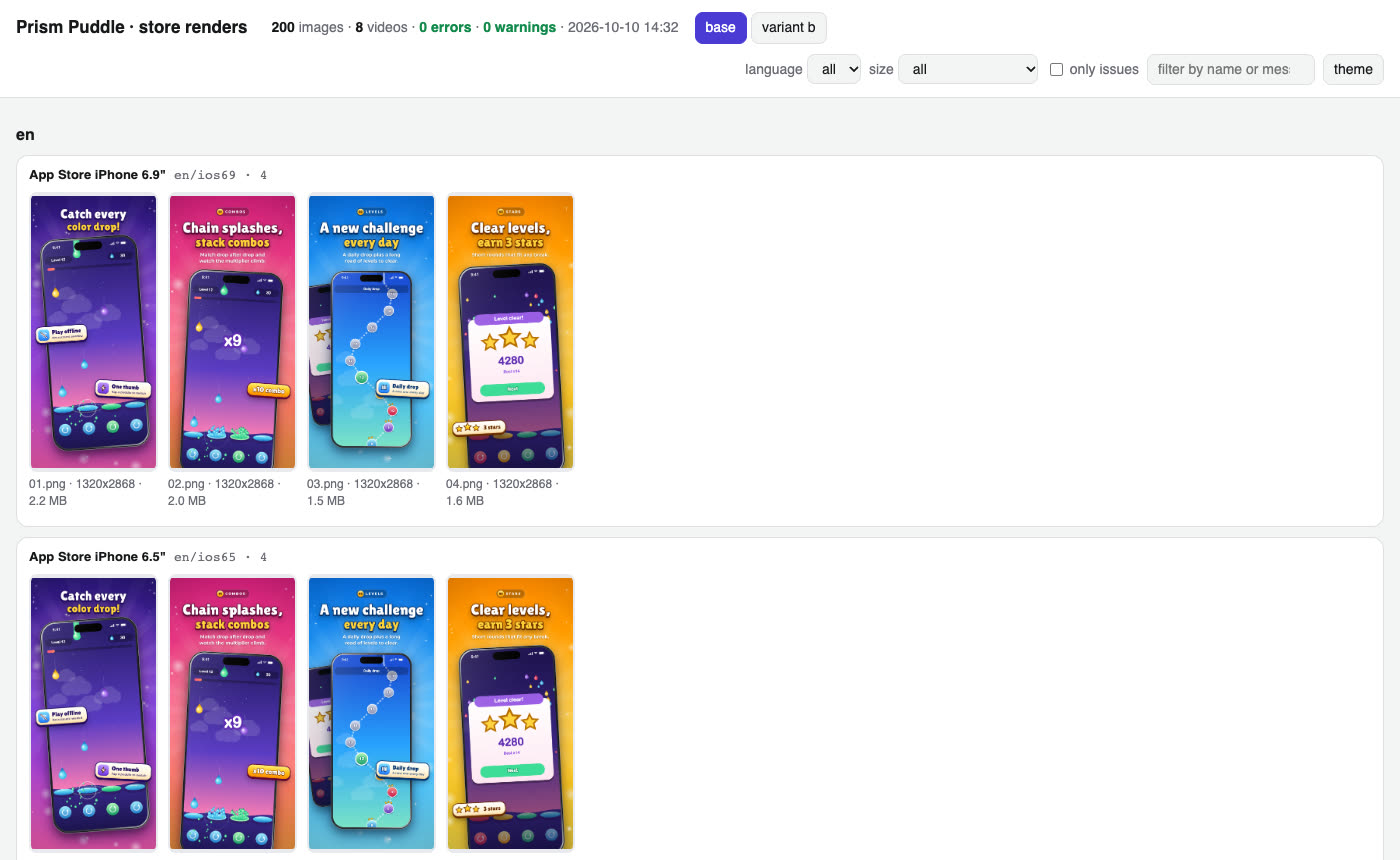
Screenshots and previews are one step of the journey, but the one that takes the longest by hand, so storebound
does a lot here. Two looks: shots.style: 'game' (sunburst, sparkles, badges) and shots.style: 'app' (calm
gradient, a clean device frame, headline + subline). Everything below was made by storebound itself from two tiny
fictional demos: a game ("Prism Puddle", procedural art) and an app
("Tidy Lists", one static page with sample data): raw frames captured from the web build, captions in several
languages, every store size, a review gallery and an app preview video. No store account needed to try it.
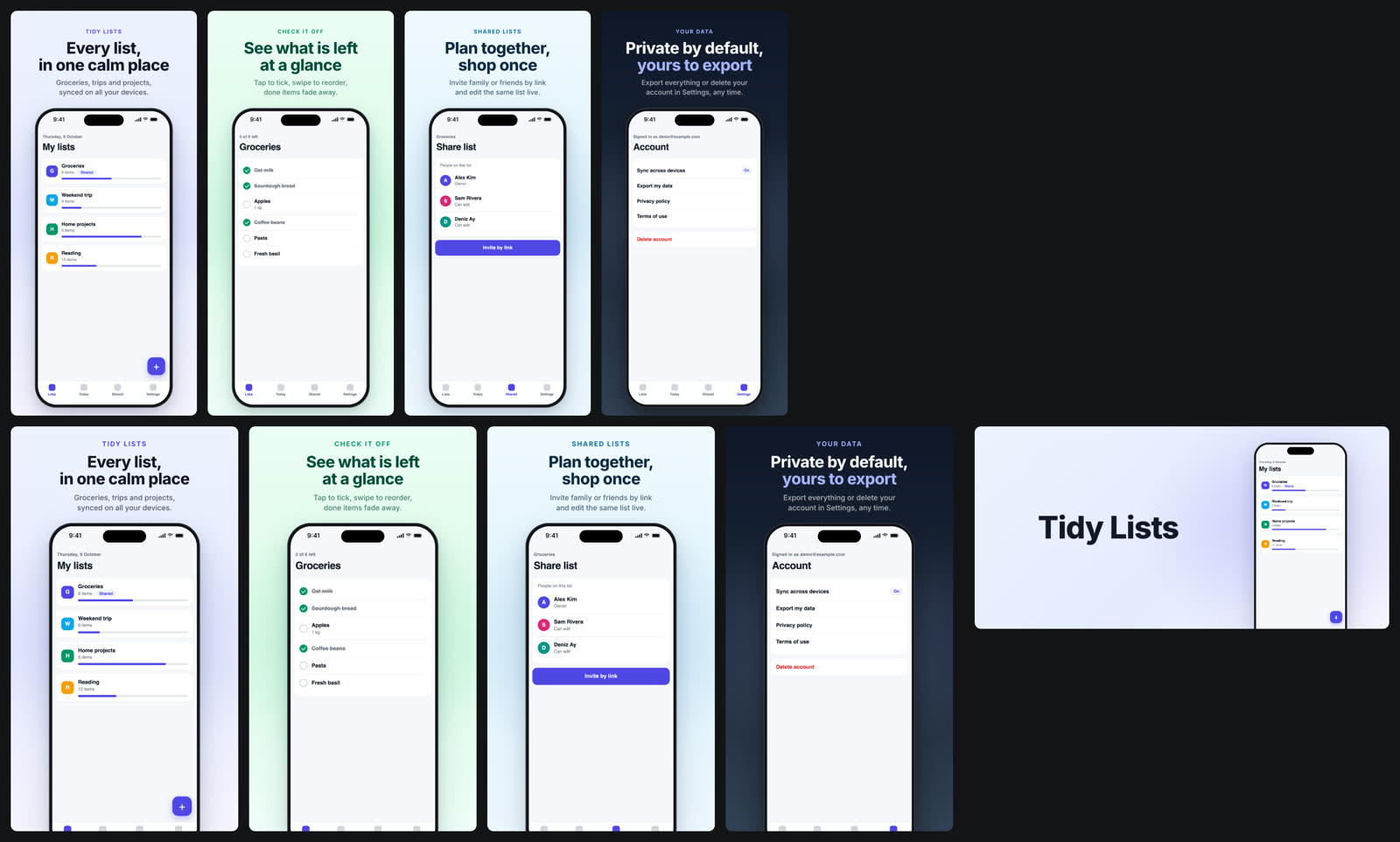
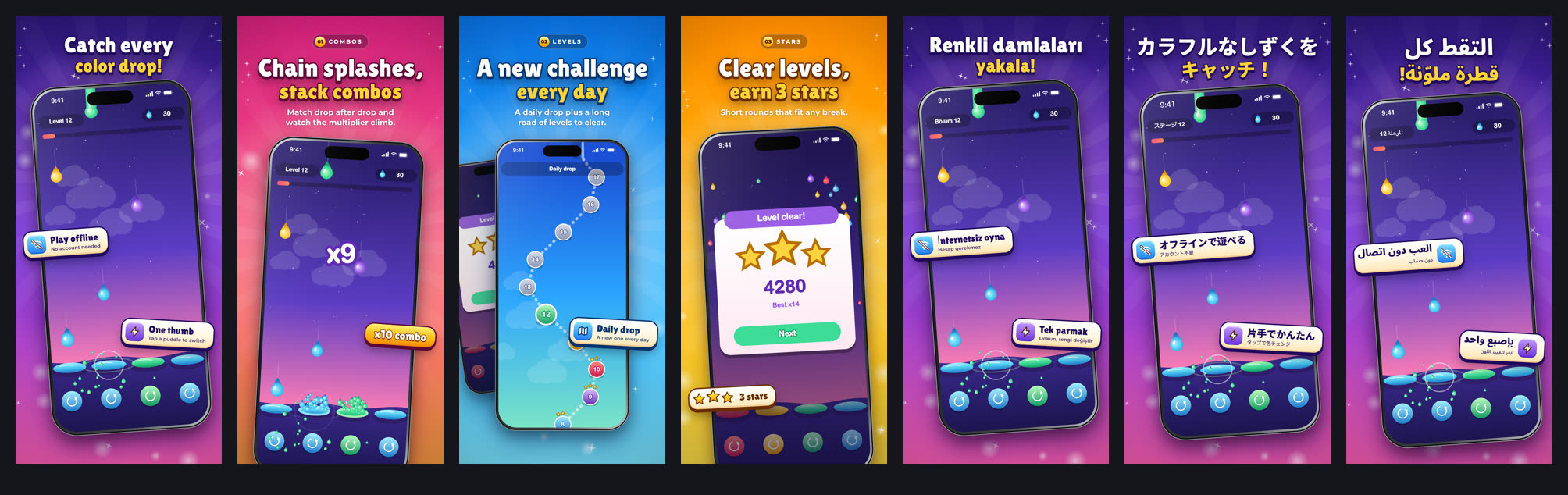
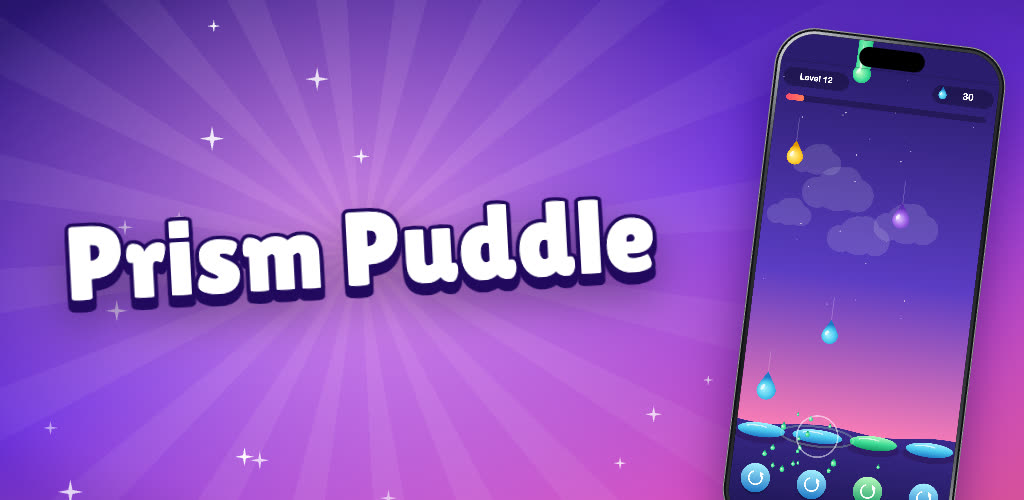
| Play feature graphic | App preview (App Store, 886 x 1920) |
|---|---|
 |
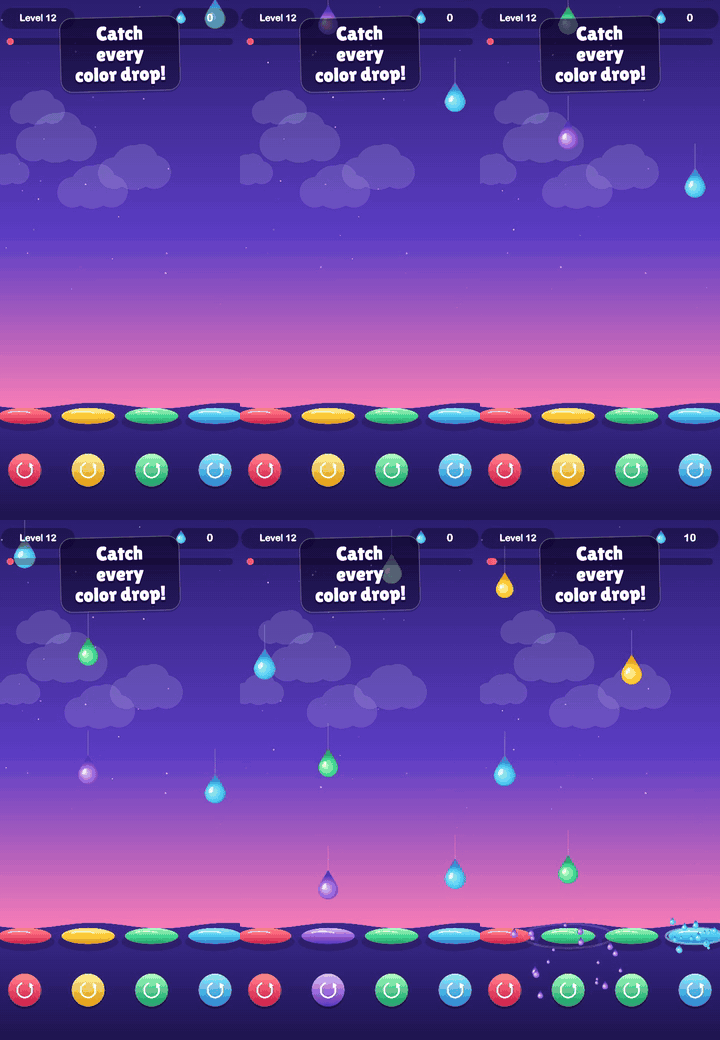 |
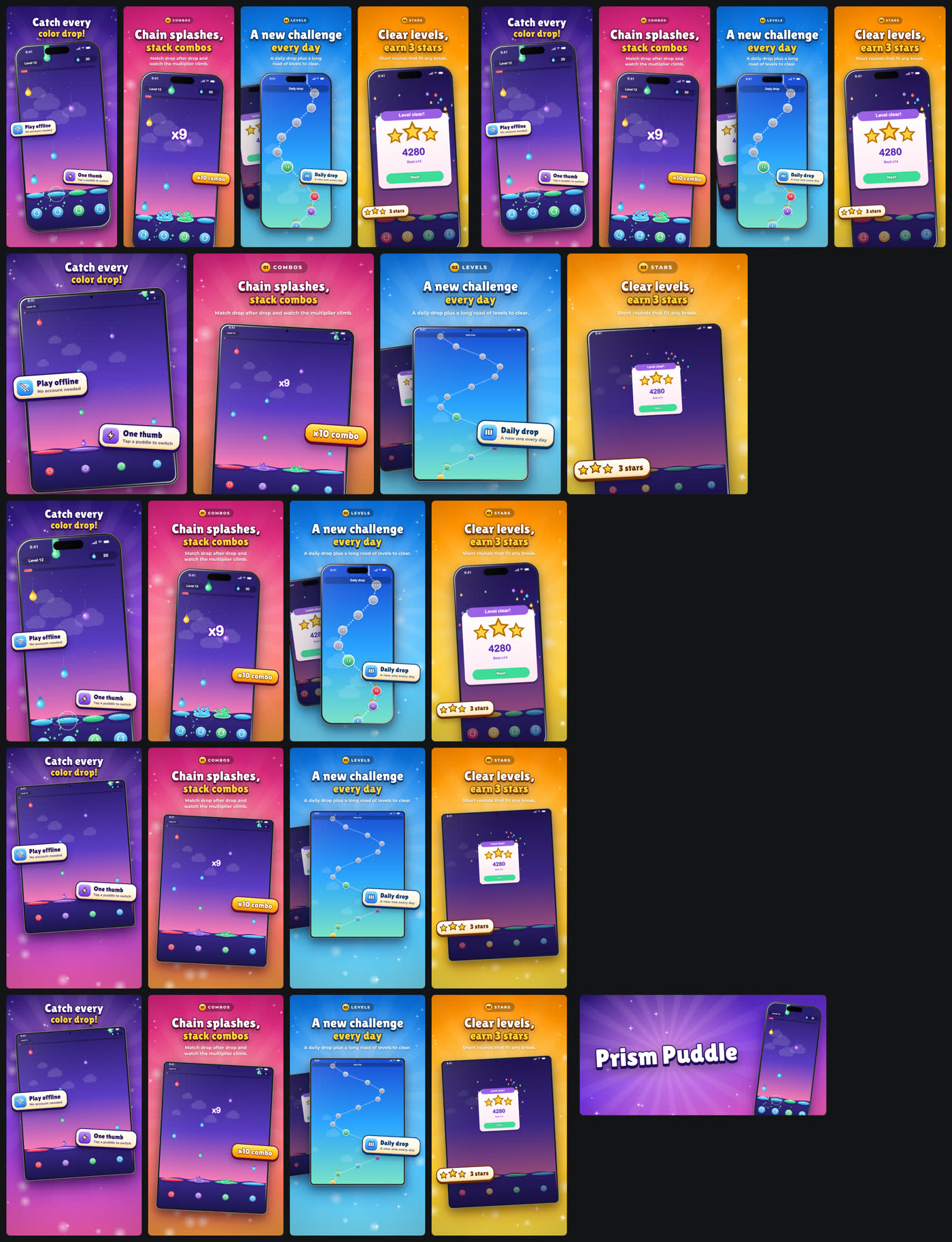
Contact sheet of one language (every size, packed into a grid)
How it works
-
Frames. Give your app or game a few switches (language, demo data or a fixed seed, no ads, jump to a screen, freeze, autoplay) and let
shots capturetake the frames: Playwright for a web build,simctlfor anything that runs in the iOS Simulator (Unity, Godot, Flutter, React Native, native, Capacitor),adbfor an Android emulator or device, or bring a folder of your own frames. The status bar is cropped off and redrawn clean (9:41, full battery). -
Copy. Per language and scene: eyebrow, two-line title, subtitle, badges. Fonts are subset from Google Fonts to exactly your characters, so Japanese, Chinese, Korean, Arabic (right to left) and Hindi just work.
shots fontschecks every character of every language against the font's cmap (TTF / OTF / WOFF / WOFF2, read in plain TypeScript): a glyph the font lacks gets an automatic Noto fallback (logged), no fallback is a clear error, and a render that drew any glyph with a fallback you did not choose, or with a system font, failsshots check.script title / body font (default stack) Latin incl. Latin Extended (tr, pl, cs, ro, hu ...) and Vietnamese your shots.fonts; default game Paytone One + Montserrat, app Inter (all cover them)Cyrillic, Greek Noto Sans (whole line) Arabic, Hebrew, Devanagari, Bengali, Thai Noto Sans Arabic / Hebrew / Devanagari / Bengali / Thai (whole line) Japanese, Korean, Chinese Noto Sans JP / KR / SC (TC for zh-Hant, TW, HK) (whole line) a character the stack lacks Noto Sans Display (titles) or Noto Sans (body), Noto Sans <Script>, then Noto Sans Symbols 2 / Symbols / Math: an ERROR in shots checkunless listed inshots.fonts.fallbackSome display fonts lack Latin Extended: Lilita One has no ş ğ İ ą ę ń ś ź ż ć ă ș ț č ř ě ů ő ű or Vietnamese, so Turkish, Polish, Czech, Romanian, Hungarian or Vietnamese titles need another title font (Paytone One, Baloo 2, Rowdies) or
fonts: { ..., fallback: ['Noto Sans Display'] }to accept the mixed glyphs.Your own brand font.
shots.fonts.title/body/fallback[]also take a local file (relative to the config; TTF, OTF, WOFF or WOFF2, checked by extension and signature) or{ family, file, weight?, style?, license? }:fonts: { title: { family: 'ER Display', file: 'apps/game/public/assets/fonts/er-display.woff2', license: 'OFL-1.1' }, body: 'Montserrat', fallback: ['Noto Sans Display'], // tried in order, before the automatic Noto fallbacks },shots fontsruns the same cmap check on the file (pl title: ę ł ą Ł not in ER Display -> Noto Sans Display), prints its size, glyph count, sha256 and license, and records it infonts.json. The file is never copied: render (andshots videocaptions) serve it from where it is, and a changed file changesfonts.css(the capture cache misses) and makesshots renderask forshots fontsagain.shots checkcounts the local font and listed fallbacks as configured, not as fallbacks, and warns when a local font has nolicensenote. -
Render. Every store size at exact pixels: iPhone 6.9" and 6.5", 13" iPad (if your app runs on iPad), Play phone, 7" and 10" tablets, the 1024 x 500 feature graphic. 24-bit RGB, no alpha (both stores reject it).
-
Check and review.
shots checkapplies the store rules locally (sources cited incli/shots/spec.ts);shots galleryputs everything on one page with problems outlined.validaterepeats the checks next to the store state. -
Variants. Other first screenshot, order or copy as
shots.variants, rendered side by side, for a Play store listing experiment or an App Store Product Page Optimization test (set up in the consoles; storebound makes and checks the images). -
Video.
shots recordfilms the autoplay mode,shots videocuts 15-30 s App Store previews (886 x 1920, 1200 x 1600) and a 9:16 / 16:9 promo for YouTube with captions in every language,apple previewsuploads them. Play takes a YouTube URL inplay.video. -
iPhone Duo (foldable).
apple.iphoneDuo: truerenders and checks the outer (1398 x 2034) and inner (2007 x 2853) sets. Optional now, reportedly required from April 2027 for iOS 27.1 SDK builds (check/validatenote it). The API has no Duo display type yet, soapple screenshotsskips them with a link to the console's iPhone Duo tab. Play has no foldable slot: foldables use the 7" / 10" tablet sets.
Details: the store-screenshots and app-previews skills.
Header and Search Results (App Store creative assets, iOS / iPadOS 27+)
Since 5 Oct 2026 the App Store version page has a "Header and Search Results" tab next to "App Previews and Screenshots". Optional: without these assets the App Store uses in-app events, app previews and screenshots.
- Files under the renders folder, per language:
<renders>/<lang>/creative/header.png(3840 x 1646, 21:9),search.png(3:2, 1920 x 1280 up to 3840 x 2560), or oneuniversal.png(5244 x 2950, 16:9) that fills either slot (also<renders>/creative/universal.pngfor every locale, orapple.creativeAssets.universal). JPEG / PNG without alpha. Videos instead:header.mov|m4v|mp4/search.*, 5-30 s, 30 or 60 fps, the same aspect ratio; search videos play muted.apple.creativeAssets.header: false/search: falseskips a slot. - Not rendered by
shots render: the scene templates are portrait device shots; make the wide art yourself (or from the feature graphic artwork at the larger size) and drop it in. - Upload and select:
storebound apple creative-assets --dry, then without--dry. Files go into the app's Asset Library (API:appAssetLibraryImages/appAssetLibraryVideos, categoryCREATIVE_ASSETS), and once processed ("Prepare for Submission", a bounded wait of 2 minutes with a heartbeat) the run selects them for the slots of the editable version (appAssetLibraryPlacements,PRODUCT_PAGE_HEADER_ASSET/APP_STORE_SEARCH_RESULTS_ASSET), as the console's Browse Assets > Save does. Approval is not needed first. Same file (MD5) = nothing sent; an archived copy is unarchived; a file App Review rejected is never uploaded again (change the file). MCP:apple_creative_assets(dry by default). - Review: an asset is reviewed only once it is in a review submission (its own item,
appAssetLibraryImage/appAssetLibraryVideo; the console's "Add for Review").--add-for-reviewadds the selected, unreviewed assets to the app's draft submission, once: before the first approved version it is the same submission as that version, later they can go alone. Pressing Submit for Review stays the owner's. - Live app, no editable version: the run uses the live version, where only APPROVED assets are selected (Apple
swaps approved assets onto a live version without a new build). New files are uploaded and wait for review:
--add-for-reviewsends them as a submission of their own (the app has an approved version), the owner presses Submit for Review, and a re-run after approval selects them. - Verify:
storebound apple creative-assets --verify(MCPapple_creative_assets_verify) is read-only: every slot of the editable version (else the live one) shows the local file, with its review state; exit 1 when one differs. - Checks:
storebound checkandvalidateprint an info note when no locale has one. - Play: no such slot. The feature graphic (1024 x 500,
play images) and the promo video (YouTube URL) are the closest equivalents.